Statistical plotting
This section documents a few basic additions to matplotlib’s plotting commands
that can be useful for statistical analysis. These features are implemented
using the intermediate PlotAxes subclass (see the 1D plotting section for details). Some of these tools will be expanded in the
future, but for a more comprehensive suite of statistical plotting utilities, you
may be interested in seaborn (we try to ensure that seaborn plotting commands
are compatible with UltraPlot figures and axes).
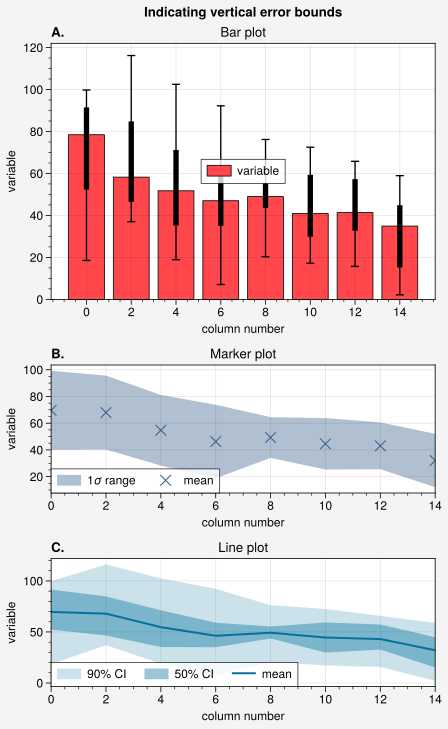
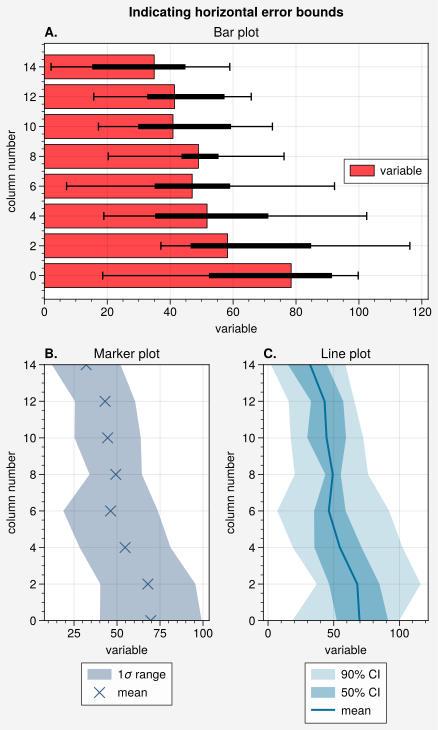
Error bars and shading
Error bars and error shading can be quickly added on-the-fly to
line(), linex()
(equivalently, plot(),
plotx()), scatter(),
scatterx(), bar(), and
barh() plots using any of several keyword arguments.
If you pass 2D arrays to these commands with mean=True, means=True,
median=True, or medians=True, the means or medians of each column are
drawn as lines, points, or bars, while error bars or error shading
indicates the spread of the distribution in each column. Invalid data is
ignored. You can also specify the error bounds manually with the bardata,
boxdata, shadedata, and fadedata keywords. These commands can draw and
style thin error bars (the bar keywords), thick “boxes” overlaid on top of
these bars (the box keywords; think of them as miniature boxplots), a
transparent primary shading region (the shade keywords), and a more
transparent secondary shading region (the fade keywords). See the
documentation on the PlotAxes commands for details.
[1]:
import numpy as np
import pandas as pd

# Sample data
# Each column represents a distribution
state = np.random.RandomState(51423)
data = state.rand(20, 8).cumsum(axis=0).cumsum(axis=1)[:, ::-1]
data = data + 20 * state.normal(size=(20, 8)) + 30
data = pd.DataFrame(data, columns=np.arange(0, 16, 2))
data.columns.name = "column number"
data.name = "variable"

# Calculate error data
# Passed to 'errdata' in the 3rd subplot example
means = data.mean(axis=0)
means.name = data.name  # copy name for formatting
fadedata = np.percentile(data, (5, 95), axis=0)  # light shading
shadedata = np.percentile(data, (25, 75), axis=0)  # dark shading
[2]:
import numpy as np

import ultraplot as uplt

# Loop through "vertical" and "horizontal" versions
varray = [[1], [2], [3]]
harray = [[1, 1], [2, 3], [2, 3]]
for orientation, array in zip(("vertical", "horizontal"), (varray, harray)):
    # Figure
    fig = uplt.figure(refwidth=4, refaspect=1.5, share=False)
    axs = fig.subplots(array, hratios=(2, 1, 1))
    axs.format(abc="A.", suptitle=f"Indicating {orientation} error bounds")

    # Medians and percentile ranges
    ax = axs[0]
    kw = dict(
        color="light red",
        edgecolor="k",
        legend=True,
        median=True,
        barpctile=90,
        boxpctile=True,
        # median=True, barpctile=(5, 95), boxpctile=(25, 75)  # equivalent
    )
    if orientation == "horizontal":
        ax.barh(data, **kw)
    else:
        ax.bar(data, **kw)
    ax.format(title="Bar plot")

    # Means and standard deviation range
    ax = axs[1]
    kw = dict(
        color="denim",
        marker="x",
        markersize=8**2,
        linewidth=0.8,
        label="mean",
        shadelabel=True,
        mean=True,
        shadestd=1,
        # mean=True, shadestd=(-1, 1)  # equivalent
    )
    if orientation == "horizontal":
        ax.scatterx(data, legend="b", legend_kw={"ncol": 1}, **kw)
    else:
        ax.scatter(data, legend="ll", **kw)
    ax.format(title="Marker plot")

    # User-defined error bars
    ax = axs[2]
    kw = dict(
        shadedata=shadedata,
        fadedata=fadedata,
        label="mean",
        shadelabel="50% CI",
        fadelabel="90% CI",
        color="ocean blue",
        barzorder=0,
        boxmarker=False,
    )
    if orientation == "horizontal":
        ax.linex(means, legend="b", legend_kw={"ncol": 1}, **kw)
    else:
        ax.line(means, legend="ll", **kw)
    ax.format(title="Line plot")
Box plots and violin plots
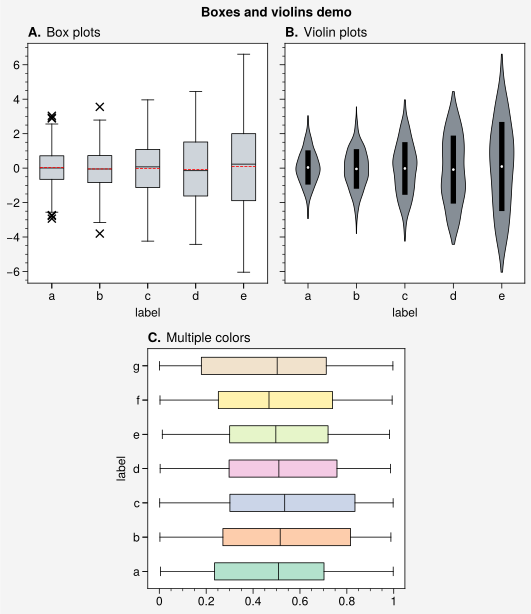
Vertical and horizontal box and violin plots can be drawn using
boxplot(), violinplot(),
boxploth(), and violinploth() (or
their new shorthands, box(), violin(),
boxh(), and violinh()). The
UltraPlot versions employ aesthetically pleasing defaults and permit flexible
configuration using keywords like color, barcolor, and fillcolor.
They also automatically apply axis labels based on the DataFrame
or DataArray column labels. Violin plot error bars are controlled
with the same keywords used for on-the-fly error bars.
[3]:
import numpy as np
import pandas as pd

import ultraplot as uplt

# Sample data
N = 500
state = np.random.RandomState(51423)
data1 = state.normal(size=(N, 5)) + 2 * (state.rand(N, 5) - 0.5) * np.arange(5)
data1 = pd.DataFrame(data1, columns=pd.Index(list("abcde"), name="label"))
data2 = state.rand(100, 7)
data2 = pd.DataFrame(data2, columns=pd.Index(list("abcdefg"), name="label"))

# Figure
fig, axs = uplt.subplots([[1, 1, 2, 2], [0, 3, 3, 0]], span=False)
axs.format(abc="A.", titleloc="l", grid=False, suptitle="Boxes and violins demo")

# Box plots
ax = axs[0]
obj1 = ax.box(data1, means=True, marker="x", meancolor="r", fillcolor="gray4")
ax.format(title="Box plots")

# Violin plots
ax = axs[1]
obj2 = ax.violin(data1, fillcolor="gray6", means=True, points=100)
ax.format(title="Violin plots")

# Boxes with different colors
ax = axs[2]
ax.boxh(data2, cycle="pastel2")
ax.format(title="Multiple colors", ymargin=0.15)
Histograms and kernel density
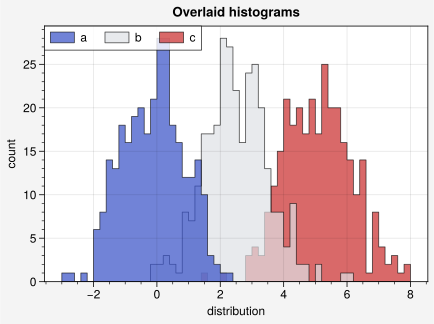
Vertical and horizontal histograms can be drawn with
hist() and histh().
As with the other 1D PlotAxes commands, multiple histograms
can be drawn by passing 2D arrays instead of 1D arrays, and the color
cycle used to color histograms can be changed on-the-fly using
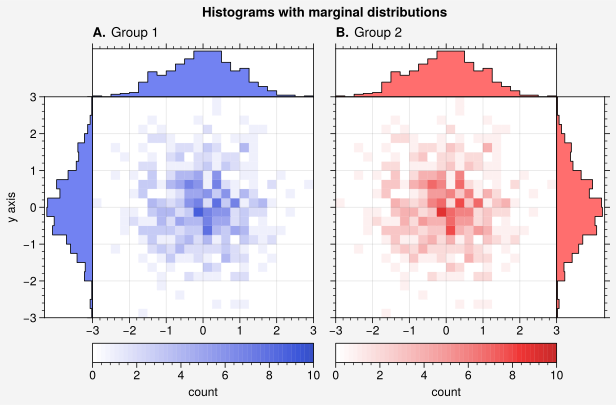
the cycle and cycle_kw keywords. Likewise, 2D histograms can
be drawn with the hist2d()
hexbin() commands, and their colormaps can
be changed on-the-fly with the cmap and cmap_kw keywords (see
the 2D plotting section). Marginal distributions
for the 2D histograms can be added using panel axes.
In the future, UltraPlot will include options for adding “smooth” kernel density
estimations to histograms plots using a kde keyword. It will also include
separate ultraplot.axes.PlotAxes.kde and ultraplot.axes.PlotAxes.kde2d commands.
The violin() and violinh() commands
will use the same algorithm for kernel density estimation as the kde commands.
[4]:
import numpy as np

import ultraplot as uplt

# Sample data
M, N = 300, 3
state = np.random.RandomState(51423)
x = state.normal(size=(M, N)) + state.rand(M)[:, None] * np.arange(N) + 2 * np.arange(N)

# Sample overlayed histograms
fig, ax = uplt.subplots(refwidth=4, refaspect=(3, 2))
ax.format(suptitle="Overlaid histograms", xlabel="distribution", ylabel="count")
res = ax.hist(
    x,
    uplt.arange(-3, 8, 0.2),
    filled=True,
    alpha=0.7,
    edgecolor="k",
    cycle=("indigo9", "gray3", "red9"),
    labels=list("abc"),
    legend="ul",
)
[5]:
import numpy as np

import ultraplot as uplt

# Sample data
N = 500
state = np.random.RandomState(51423)
x = state.normal(size=(N,))
y = state.normal(size=(N,))
bins = uplt.arange(-3, 3, 0.25)

# Histogram with marginal distributions
fig, axs = uplt.subplots(ncols=2, refwidth=2.3)
axs.format(
    abc="A.",
    abcloc="l",
    titleabove=True,
    ylabel="y axis",
    suptitle="Histograms with marginal distributions",
)
colors = ("indigo9", "red9")
titles = ("Group 1", "Group 2")
for ax, which, color, title in zip(axs, "lr", colors, titles):
    ax.hist2d(
        x,
        y,
        bins,
        vmin=0,
        vmax=10,
        levels=50,
        cmap=color,
        colorbar="b",
        colorbar_kw={"label": "count"},
    )
    color = uplt.scale_luminance(color, 1.5)  # histogram colors
    px = ax.panel(which, space=0)
    px.histh(y, bins, color=color, fill=True, ec="k")
    px.format(grid=False, xlocator=[], xreverse=(which == "l"))
    px = ax.panel("t", space=0)
    px.hist(x, bins, color=color, fill=True, ec="k")
    px.format(grid=False, ylocator=[], title=title, titleloc="l")
Ridgeline plots
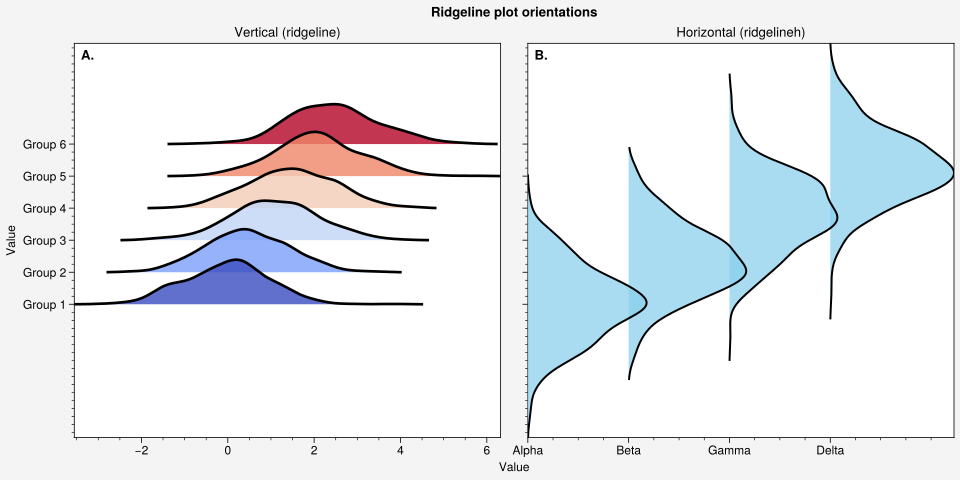
Ridgeline plots (also known as joyplots) visualize distributions of multiple
datasets as stacked, overlapping density curves. They are useful for comparing
distributions across categories or over time. UltraPlot provides
ridgeline() and ridgelineh()
for creating vertical and horizontal ridgeline plots.
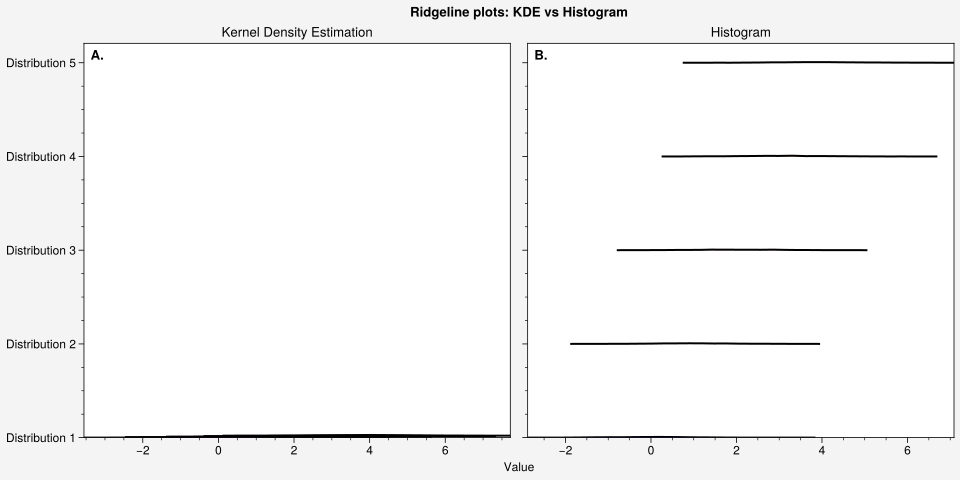
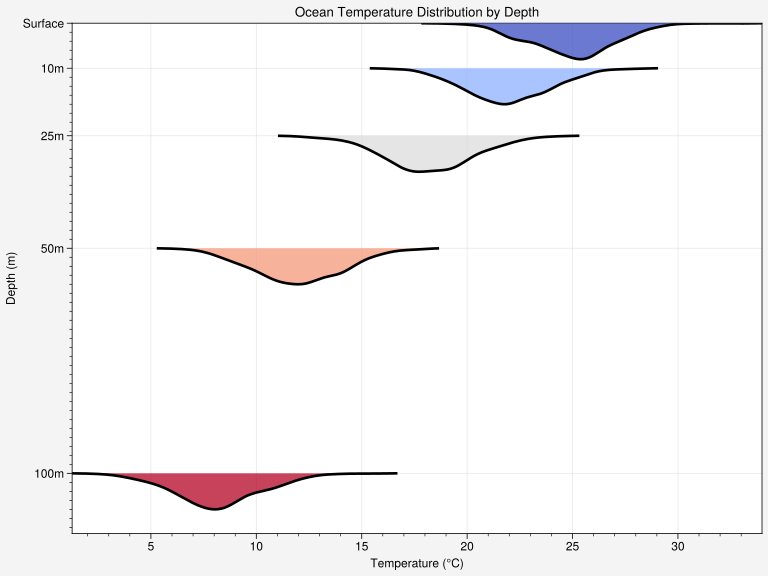
Ridgeline plots support two display modes: smooth kernel density estimation (KDE) by default, or histograms with the hist keyword. They also support two positioning modes: categorical positioning with evenly-spaced ridges (traditional joyplots), or continuous positioning where ridges are anchored to specific physical coordinates (useful for scientific plots like depth profiles or time series).
[6]:
import numpy as np

import ultraplot as uplt

# Sample data with different distributions
state = np.random.RandomState(51423)
data = [state.normal(i, 1, 500) for i in range(5)]
labels = [f"Distribution {i+1}" for i in range(5)]

# Create figure with two subplots
fig, axs = uplt.subplots(ncols=2, figsize=(10, 5))
axs.format(
    abc="A.", abcloc="ul", grid=False, suptitle="Ridgeline plots: KDE vs Histogram"
)

# KDE ridgeline (default)
axs[0].ridgeline(
    data, labels=labels, overlap=0.6, cmap="viridis", alpha=0.7, linewidth=1.5
)
axs[0].format(title="Kernel Density Estimation", xlabel="Value")

# Histogram ridgeline
axs[1].ridgeline(
    data,
    labels=labels,
    overlap=0.6,
    cmap="plasma",
    alpha=0.7,
    hist=True,
    bins=20,
    linewidth=1.5,
)
axs[1].format(title="Histogram", xlabel="Value")
[7]:
import numpy as np

import ultraplot as uplt

# Sample data
state = np.random.RandomState(51423)
data1 = [state.normal(i * 0.5, 1, 400) for i in range(6)]
data2 = [state.normal(i, 0.8, 400) for i in range(4)]
labels1 = [f"Group {i+1}" for i in range(6)]
labels2 = ["Alpha", "Beta", "Gamma", "Delta"]

# Create figure with vertical and horizontal orientations
fig, axs = uplt.subplots(ncols=2, figsize=(10, 5))
axs.format(abc="A.", abcloc="ul", grid=False, suptitle="Ridgeline plot orientations")

# Vertical ridgeline (default - ridges are horizontal)
axs[0].ridgeline(
    data1, labels=labels1, overlap=0.7, cmap="coolwarm", alpha=0.8, linewidth=2
)
axs[0].format(title="Vertical (ridgeline)", xlabel="Value")

# Horizontal ridgeline (ridges are vertical)
axs[1].ridgelineh(
    data2, labels=labels2, overlap=0.6, facecolor="skyblue", alpha=0.7, linewidth=1.5
)
axs[1].format(title="Horizontal (ridgelineh)", ylabel="Value")
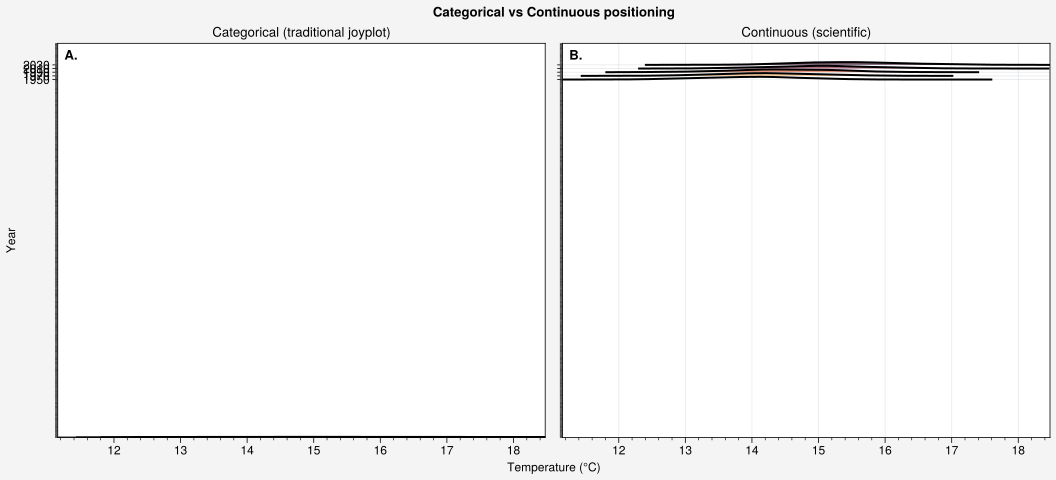
Continuous positioning
For scientific applications, ridgeline plots can use continuous (coordinate-based) positioning where each ridge is anchored to a specific numerical coordinate along the axis. This is useful for visualizing how distributions change with physical variables like depth, time, altitude, or redshift. Use the positions parameter to specify coordinates, and optionally the height parameter to control ridge height in axis units.
[8]:
import numpy as np

import ultraplot as uplt

# Simulate ocean temperature data at different depths
state = np.random.RandomState(51423)
depths = [0, 10, 25, 50, 100]  # meters
mean_temps = [25, 22, 18, 12, 8]  # decreasing with depth
data = [state.normal(temp, 2, 400) for temp in mean_temps]
labels = ["Surface", "10m", "25m", "50m", "100m"]

fig, ax = uplt.subplots(figsize=(8, 6))
ax.ridgeline(
    data,
    labels=labels,
    positions=depths,
    height=8,  # height in axis units
    cmap="coolwarm",
    alpha=0.75,
    linewidth=2,
)
ax.format(
    title="Ocean Temperature Distribution by Depth",
    xlabel="Temperature (°C)",
    ylabel="Depth (m)",
    yreverse=True,  # depth increases downward
    grid=True,
    gridcolor="gray5",
    gridalpha=0.3,
)
[9]:
import numpy as np

import ultraplot as uplt

# Simulate climate data over time
state = np.random.RandomState(51423)
years = [1950, 1970, 1990, 2010, 2030]
mean_temps = [14.0, 14.2, 14.5, 15.0, 15.5]  # warming trend
data = [state.normal(temp, 0.8, 500) for temp in mean_temps]

fig, axs = uplt.subplots(ncols=2, figsize=(11, 5))
axs.format(abc="A.", abcloc="ul", suptitle="Categorical vs Continuous positioning")

# Categorical positioning (default)
axs[0].ridgeline(
    data, labels=[str(y) for y in years], overlap=0.6, cmap="fire", alpha=0.7
)
axs[0].format(
    title="Categorical (traditional joyplot)", xlabel="Temperature (°C)", grid=False
)

# Continuous positioning
axs[1].ridgeline(
    data,
    labels=[str(y) for y in years],
    positions=years,
    height=15,  # height in year units
    cmap="fire",
    alpha=0.7,
)
axs[1].format(
    title="Continuous (scientific)",
    xlabel="Temperature (°C)",
    ylabel="Year",
    grid=True,
    gridcolor="gray5",
    gridalpha=0.3,
)